mirror of https://github.com/Box-boi/vubuntu.git
 d581f63ff9
-- Needed As A Replacement For NGROK -- Ability To Access VNC From Any Browser, No Hassle Of Installing VNC Clients! |
||
|---|---|---|
| assets | ||
| .gitignore | ||
| Dockerfile | ||
| Dockerfile.heroku | ||
| LICENSE | ||
| README.md | ||
| app.json | ||
| heroku.yml | ||
VNC + Ubuntu = Vubuntu ¯\_ツ_/¯






Table of Contents :
Available Options :
- Latest: Full version of vubuntu with utilities, additional installed languages (Java & Go) & optional packages.
- Minimal: Minimal version with only required packages, see next section for more info.
- PureVNC: Full, direct VNC access without noVNC.
- PureVNC-Minimal: Minimal, direct VNC access without noVNC.
Packages :
- •: Available in minimal version
- Browsers :
- Shells :
- Coding :
- Text Editors :
- Office Suite :
- Social Apps :
- Utilities :
- Languages Installed:












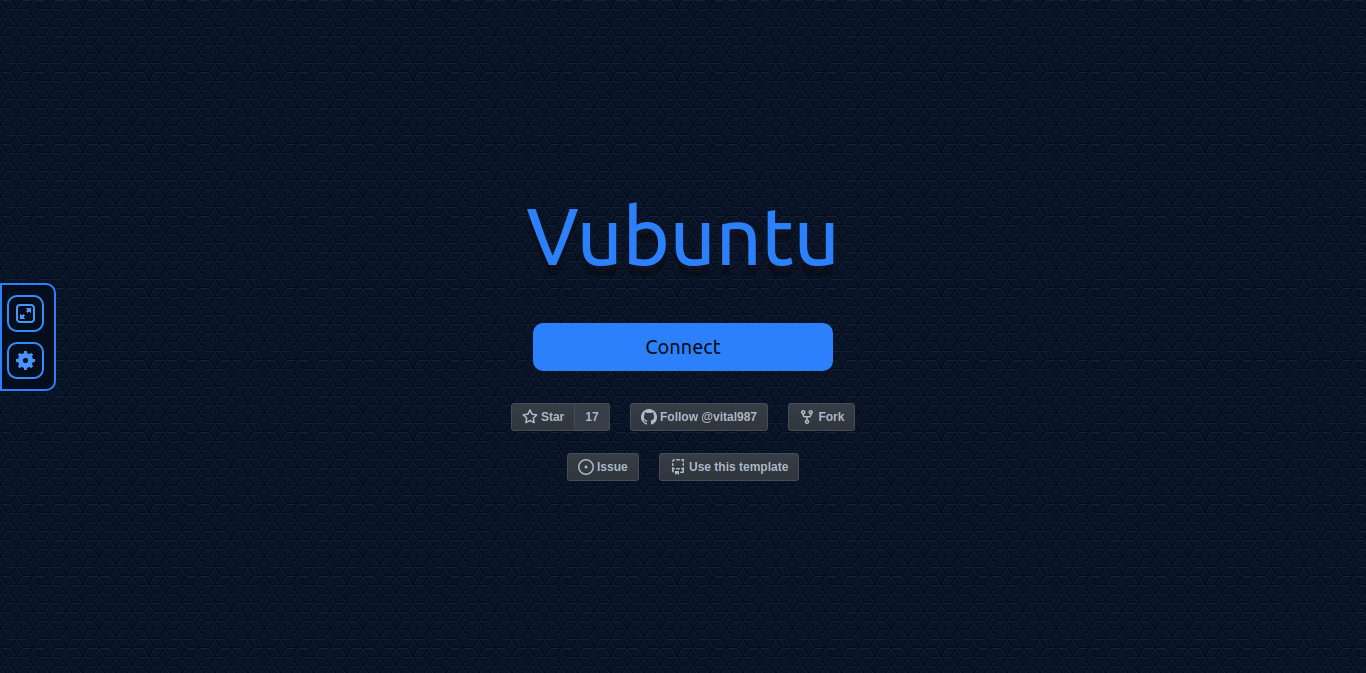
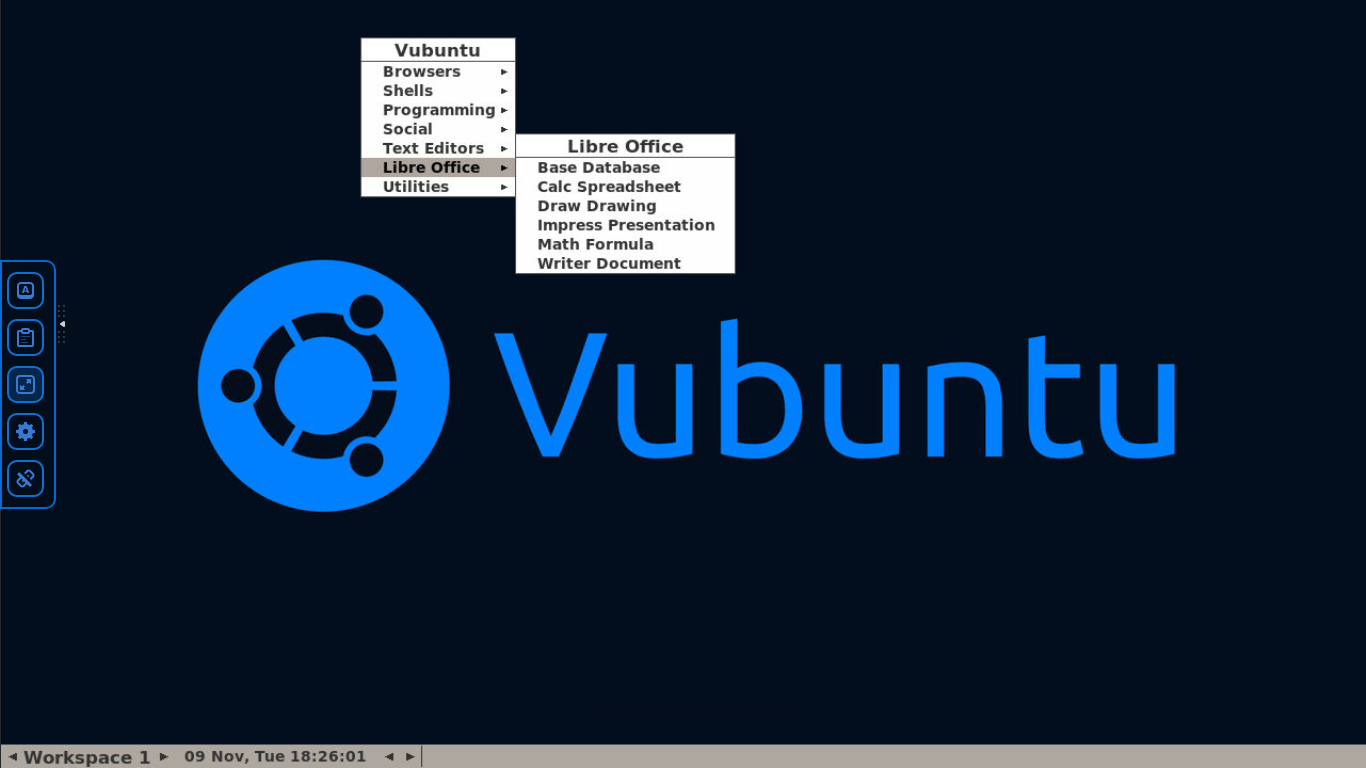
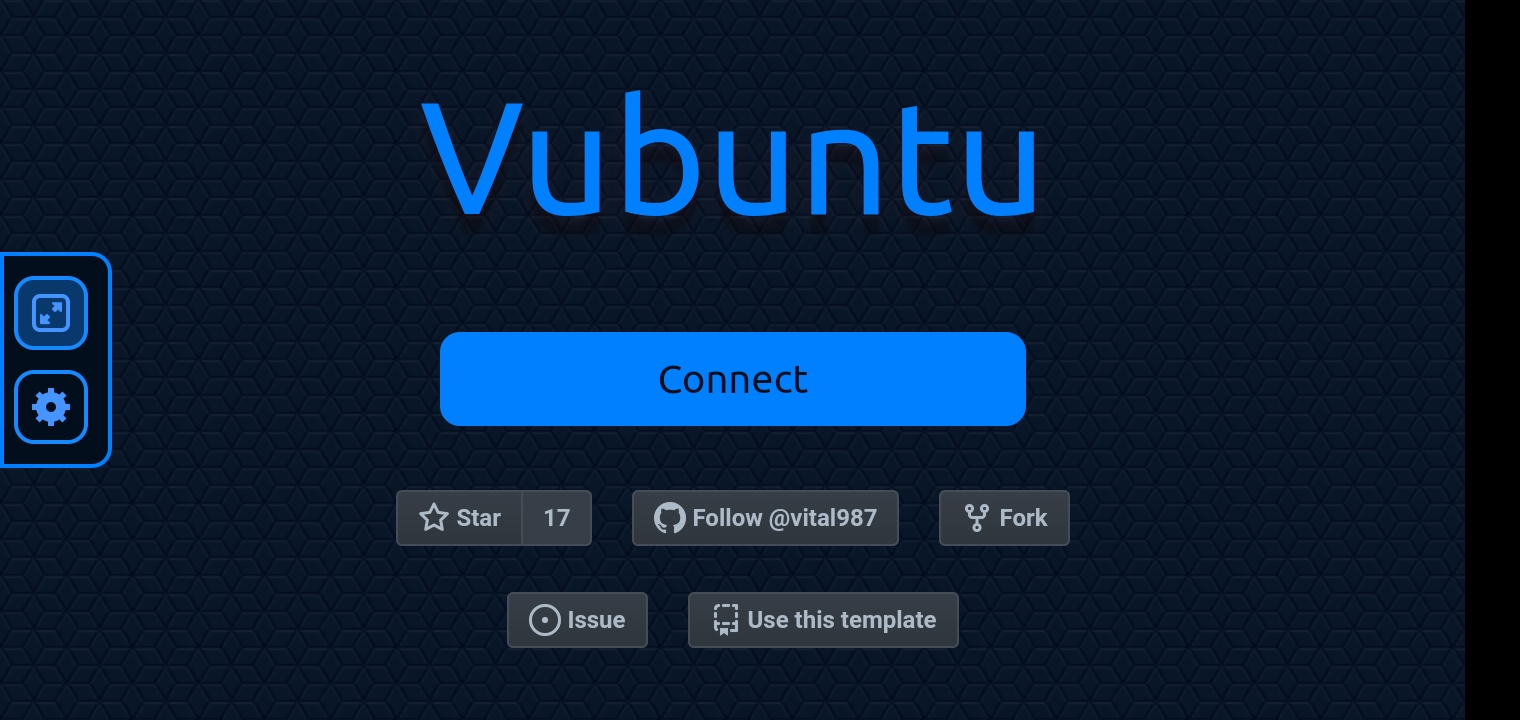
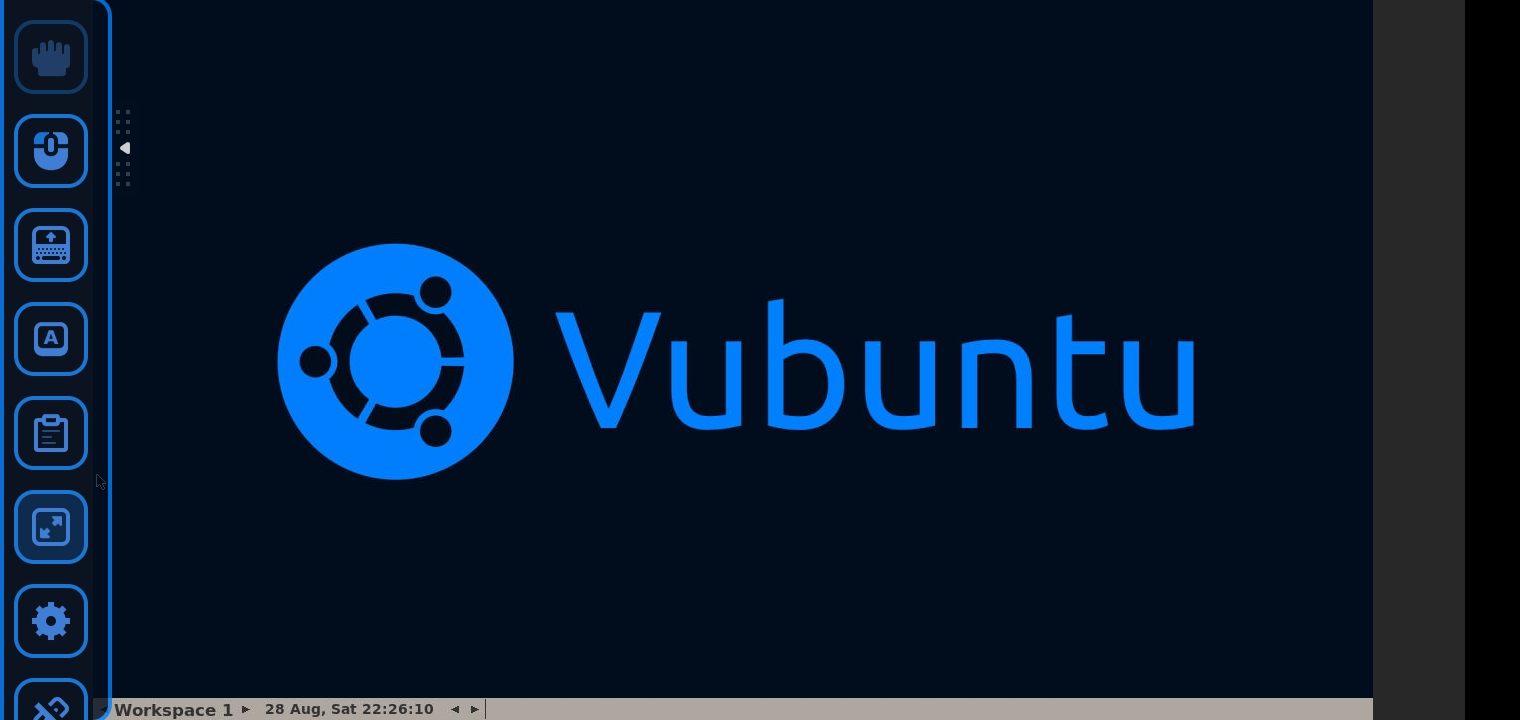
Screenshots :
Laptop/Desktop
Smartphone/Tablet
Environment Variables :
| VNC_PASS | VNC Server Password |
|---|---|
| VNC_TITLE | VNC Session Title |
| VNC_RESOLUTION | VNC Server Resolution |
| VNC_SHARED | VNC Shared Mode |
| DISPLAY | Display Server Port |
| PORT | NoVNC HTTP Port |
| NGROK_AUTH_TOKEN | Ngrok Token |
| NGROK_REGION | Ngrok Server Region (Only PureVNC) |
| CHROME_REMOTE_DESKTOP_TOKEN | Chrome Remote Desktop One Time OAuth Token, Read More About It Below |
| NO_SLEEP | Prevent Heroku app from sleeping, disabled by default |
| APP_NAME | Name of Heroku app |
| BRAVE_USE_SHM | Usage of /dev/shm for Brave |
Installation :
- Heroku Users :
- Click on Deploy Now button.
- Set the app name & variables.
- Deploy.
- Manual Method :
- Edit & Run Command :
docker run --name vubuntu \ -e VNC_PASS="samplepass" \ -e CHROME_REMOTE_DESKTOP_TOKEN="sampletoken" \ -e VNC_TITLE="Vubuntu" \ -e VNC_RESOLUTION="1280x720" \ -e DISPLAY=:0 \ -e PORT=9870 \ -d -p 8080:9870 \ vital987/vubuntu:latest - noVNC Web-UI will be accessible on port 8080
- Edit & Run Command :
Warnings :
- [ ! ] VNC_TITLE & VNC_PASS values should be without spaces.
- [ ! ] CHROME_REMOTE_DESKTOP_TOKEN Is A One Time Use Token, Hence A New One Has To Be Generated At Each Deploy.
- [ ! ] The whole project runs as a root user and non-sandboxed chromium in a docker container.
- [ ! ] Using VNC/Remote Desktops are strictly prohibited/banned on many free platforms.
- [ ! ] Deploy/Use at your own risk & responsibility!
Generating And Using CHROME_REMOTE_DESKTOP_TOKEN :
- Go To https://remotedesktop.google.com/headless
- Click On "Begin" --> "Next" --> "Authorize"
- Copy The "Debian Linux" Part Of the Code
- The Copied Code Will Be Similar To
DISPLAY= /opt/google/chrome-remote-desktop/start-host --code="4/0AX4XfWjqobNoL8ODQx4w_xihdijiJ2vRPBZAhr34sJ3xWm3bkkMDPObM64ITYJYGmYp7yQ" --redirect-url="https://remotedesktop.google.com/_/oauthredirect" --name=$(hostname) - Notice The
--code=....part, That Is What We Need! - In This Case, The
CHROME_REMOTE_DESKTOP_TOKENis4/0AX4XfWjqobNoL8ODQx4w_xihdijiJ2vRPBZAhr34sJ3xWm3bkkMDPObM64ITYJYGmYp7yQ - Please Note That This Is A One-Time-Use Code, And Redeploying It Or Restarting Docker Would Need Generation Of A New Code!(Note: Heroku App Restarts Will Be Ok)